Verifying lets you edit your business info on Google and interact with customers, and Google decides which methods are offered to your locksmith firm. After you complete the steps, a verification review takes up to five working days. This guide walks you through every method.
Why verification matters
Until you verify your business, your control over how your locksmith firm appears on Google Maps and Google Search is restricted. If you haven't verified your profile, you can still edit some info, like your business name, business category, address, hours, phone number and website. However, to edit all your info you need to verify.
Verifying gives you ownership of your Business Profile. Google's help page says that to edit your business info on Google, such as business name or opening hours, and interact with customers, you need to verify your business. Ownership is what lets you edit all your info and interact with customers.
Once you are verified you can edit all your info, so use that moment to check that your business name, category, phone number and hours are correct. If you are not yet verified, you can still edit some of them, as noted above.
Before you start
You need a Google Account to sign up for a Business Profile. It can be a new account with a Gmail address or your preferred email address, or an existing Google Account with any email address. Make sure you are logged into this account before you begin. Google changes these screens from time to time, and the button and menu names used in this guide are the ones Google's help pages used in November 2026.
If your locksmith firm is not on Google yet, you can add it. To add a business that isn't on Google, go to business.google.com/add, click Add your business to Google, follow the on-screen instructions to add your details, then select a verification option. The process of adding or claiming a business costs nothing.
If a profile for your business already exists and is unverified, you can claim it. To claim an unverified profile that already exists, open Google Maps on a computer, search for your business's name and city, select Claim this business, then Manage now, then select a verification option. In the Google Maps app, open the business, tap About, then Claim this business, then Manage now.
Why Google chooses the method
When you reach the verification stage, you will see one or more options on your screen. Verification methods are automatically determined by Google and can't be changed. The options available depend on your business type, public info, region or opening hours, and in some cases you may need to verify with more than one method.
Most locksmiths are mobile. They travel to customers and do not serve customers at their own address, so they fit Google's definition of a Service Area Business. Google decides which methods your profile is offered.
A locksmith with a shop that customers visit, with permanent signage, is a shop front or hybrid business. Whatever your setup, if your business is eligible for video verification, Google recommends using that option.
Phone, text and email
If Google offers phone or text verification, make sure you can answer your business phone number or receive text messages. Interactive voice response (IVR) systems won't get the code, so if your number answers with an automated menu, the code will not get through. Many locksmiths take calls while out on jobs, so request the code only when you can answer the call or open the text straight away.
- Go to your Business Profile.
- Select Get verified.
- Select Phone or SMS.
- Answer the call or open the text with the code.
- Enter the code on your profile.
For email verification, make sure you can use the email address shown in the verification screen.
- Go to your Business Profile.
- Select Get verified.
- Select Email.
- Follow the steps in the email.
Keep the verification code secure. Google will never ask for your verification code, and you should not share it with anyone, even people who manage your Business Profile.
Video recording and live video call
For a video recording, the video must be an unedited, unique and complete recording with no breaks, at least 30 seconds long, and recorded and uploaded from a mobile device through your Business Profile. You can check the exact video recording requirements before you begin.
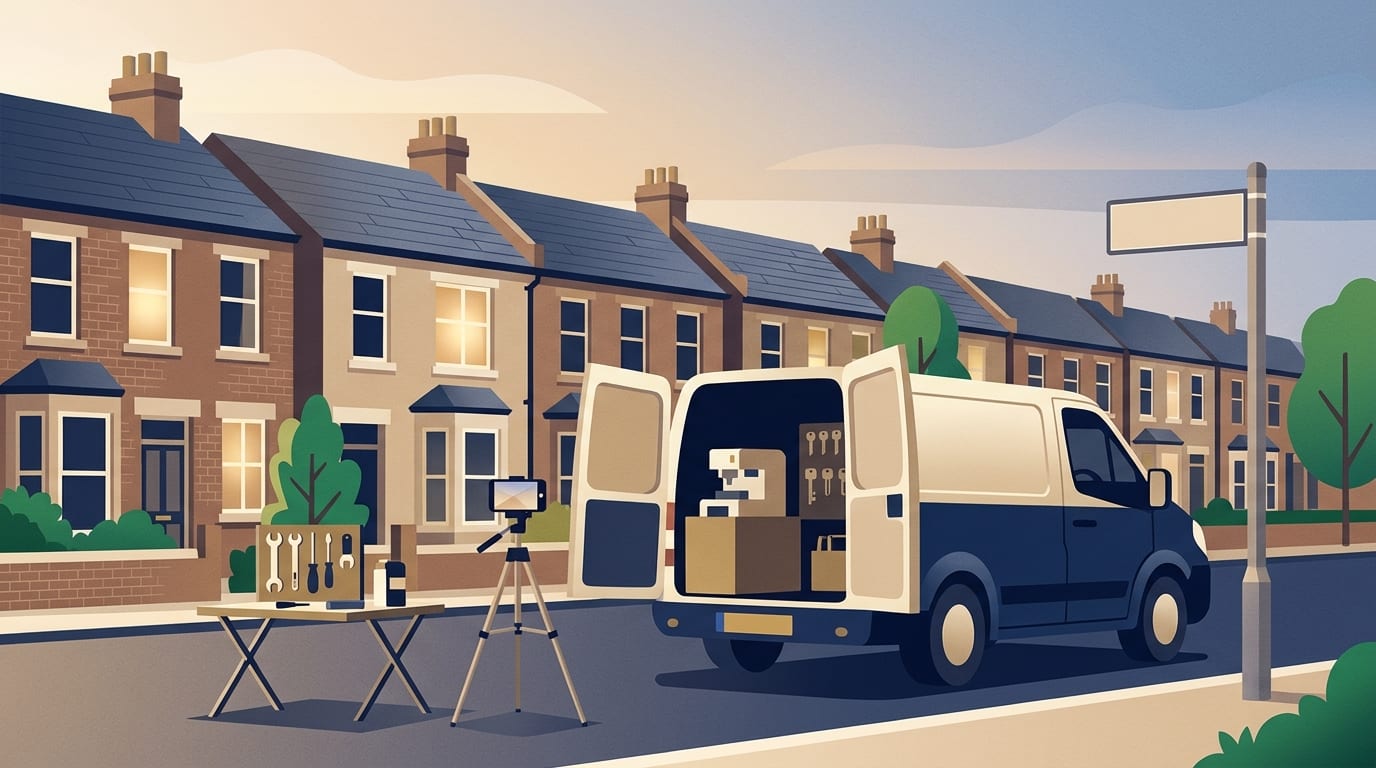
A live video call may not be available for all businesses, and live video calls are only available within the opening hours of your location. Be at your business and ready to show your current location, such as outside signs, nearby businesses or a street sign. Google also asks you to be ready to show your business or equipment, such as products, branded equipment, marketing materials or tools you use to serve customers. These are examples, not a checklist. A locksmith might show a van fitted out with a key cutting machine and lock stock, or a key cutting machine, lock fitting tools, a drill and a stock of cylinders, mortice locks and handles, all at your base and never in use on a lock.
You also need to show proof that you manage the business. This can include access to employee-only areas or items, non-sensitive business documents, or using your keys to open your facility. An invoice from a lock supplier in the business name is one example of a business document, provided any bank, tax or ID numbers are kept out of shot.
To start a live video call, follow these steps.
- Go to your Business Profile.
- Select Get verified, then Live video call, then Next.
- Choose your language, and select Start call to start a text chat with a support representative.
- When a representative is ready they help you join a video call.
- Use your device's camera to show your business location and ownership.
Safety and privacy are critical. Never film opening a customer's door or any entry method, never show how a lock is opened or bypassed, and never film at a customer's property, where the address and faces are private. Before you record, walk through what you will show once, because the recording must have no breaks. There is more on video verification for locksmiths.
Verifying by postcard
Verification by post isn't available for all businesses. If it is offered, select Get verified, then Postcard, check your business postal address is correct and request the code.
Most codes arrive within 14 days. Verification codes expire after 30 days, so enter the code as soon as the card arrives, and if you are out on jobs, check for the postcard regularly. Enter the five-digit code in the 'Code' field on your profile and select Submit.
While you wait for a postcard, do not edit your business name, address or category, or the code Google sent won't work. You must also not request a new code, because that invalidates the code in the post and makes the process longer.
How long it takes and what happens next
After you complete the verification steps, Google reviews the info you provided. Verification reviews take up to five working days and on rare occasions may take longer. When your business is verified you get a confirmation email.
In some cases Google verifies a profile instantly, for example when you have verified your website with Google Search Console, or when you use bulk verification. Once verified, you can edit all your info and interact with customers.
If you are still unable to verify after trying the options available to you, contact support. Google Business Profile support is reached from the Help Centre's contact page at support.google.com/business/gethelp. If you ever face a suspension, there is more on suspended Google profiles.
When Google asks you to verify again
If the 'Get verified' button appears on your Business Profile again, Google couldn't completely verify your business. You must try to re-verify, and if the profile shows several verification options you can try other methods. If Google asks for additional info to re-verify, it is likely because some business details were recently updated. Simply select Get verified and try to re-verify.
Some edits to a verified profile can lead Google to ask you to verify again. If you change your business name after it is verified, you might need to verify your business again. If you move your business to a new address after it is verified, you must verify your business again.
If you add or edit a business category, you might be asked to verify your business again. Many locksmiths use Locksmith as the primary category, with additional ones such as Emergency locksmith service, Locks supplier, Security system installation service or Safe & vault shop where they describe the work. Settle your categories before you verify, and where you can, change one thing at a time. Service area settings are covered in setting a service area.
Common questions
How long does Google Business Profile verification take?
Allow up to five working days for the review, and a little longer on rare occasions. You get a confirmation email once your business is verified.
Can I choose the method?
No. Google chooses the methods for your profile, so you work through whichever ones it shows you.
Why is there no postcard option?
Google does not offer a postcard to every business, so try the options your profile shows. Video is recommended where your business is eligible.
What if I miss the live video call?
Calls run only while your location is open, so if you miss one, go back to your profile and try again within those hours.
Do I have to verify again after a change?
It can happen. The section above on verifying again lists the edits that lead to it.
Your next steps
Before you start the verification process, make sure your locksmith firm is ready to prove its identity to Google. Follow this checklist to ensure a smooth process.
- Check you have a Google Account and are logged in.
- Go to business.google.com/add to add a new business, or search on Google Maps to claim an existing unverified profile.
- Gather a non-sensitive business document, and keep any bank, tax or ID numbers out of shot.
- Park your van at your base so that your equipment and stock are easy to show.
- Ensure you are within your opening hours if you are doing a live video call.
- Leave your name, address and category alone while a postcard is on its way.
Until then, work through the options your profile shows, and contact support only once you have tried them. Once your profile is verified, the rest of your info is open to edit. If you would like to look at locksmiths in other areas, you can browse locksmiths by location.
Find a top rated locksmith near you
1,831 locksmiths across the UK, each ranked on their Google rating and the number of reviews behind it. Start with your county: